
Reduce image size for Youtube thumbnail online
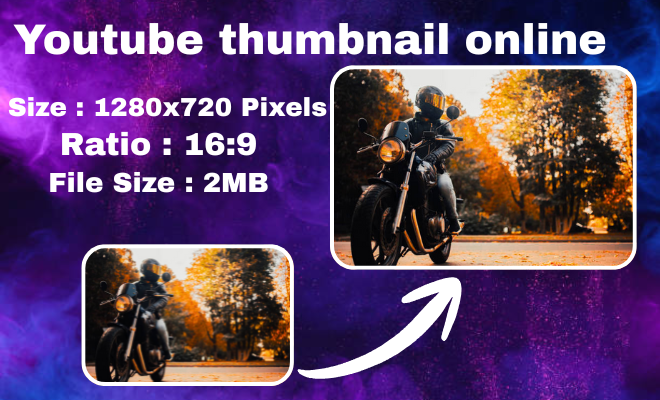
How to Reduce Your Thumbnail Image Size for YouTube?
- Simply drag and drop your original high-quality image into the tool. Our platform accepts all major file formats instantly and securely.
- Choose the perfect YouTube size (1280x720px) and adjust the smart slider to reduce file size to under 2MB without losing visible sharpness.
- Click the download button to get your perfectly optimized thumbnail instantly. It’s now ready to upload and grab more clicks on YouTube.
YouTube thumbnail 2mb converter
Perfect Quality
Resize your images without losing clarity or sharpness.

Easy to Use
Upload, adjust size, and download in just a few simple steps.

Privacy Guaranteed
Your images are processed securely and never stored or shared.
Reduce image size for Youtube thumbnail
Reducing your image size for a YouTube thumbnail is a crucial step for any creator, offering immediate benefits for both channel performance and workflow. The primary advantage is ensuring fast, error free uploads by compressing your file to under YouTube’s 2MB limit, preventing frustrating upload errors. While you shrink the file size in megabytes, you must strictly maintain the 1280×720 pixel dimensions or a 16:9 ratio to guarantee crisp & high definition display across all devices. This optimization directly improves your video’s load speed and SEO, as YouTube favors channels that provide a better viewer experience. Importantly using a reputable online tool to compress your thumbnail safeguards your visual content, as secure processors delete your files automatically, protecting your original artwork and channel branding. Ultimately this simple process of resizing and compressing empowers you to present a professional, eye catching thumbnail that attracts more clicks without technical hiccups, letting you focus on creating great content.
Frequently Asked Questions
1. What are the exact size requirements for a YouTube thumbnail?
YouTube recommends an image size of 1280 x 720 pixels, with a minimum width of 640 pixels, and the file must be under 2MB. The ideal aspect ratio is 16:9.
2. Why is my thumbnail file size too large, and how can I reduce it?
Large file sizes are usually due to high resolution (more pixels than needed) or lack of compression. You can reduce it by resizing to 1280x720px and using a tool to compress the JPG/PNG file while maintaining visual quality.
3. Will reducing the file size make my thumbnail look blurry or pixelated?
Not if done correctly. Always start with a high quality image, resize to the correct pixel dimensions first, and then use a compression tool that optimizes the file without noticeably degrading the image quality.
4. Is it safe to use free online image compressors?
Yes, if you choose reputable tools. Look for services that process images client side (in your browser) or explicitly state they do not store or share your uploaded files, deleting them after a short period.
5. What’s the best file format for a YouTube thumbnail: JPG or PNG?
JPG is generally best as it offers a great balance of quality and small file size. Use PNG only if your thumbnail requires transparency (a logo without a background), but be aware it will result in a larger file.
6. Can I just change the file extension to reduce size?
No, simply renaming a file (e.g., from .png to .jpg) does not reduce its size. You need to use proper software or a website to re-encode and compress the actual image data.
7. What are the benefits of optimizing my thumbnail’s file size?
Benefits include faster uploads, no upload errors, quicker loading times for viewers (on YouTube and in search), and potentially better SEO as page speed is a ranking factor. It also ensures your channel looks professional.
Leave a Reply